
The DTS 2.0 Navigation Tools are located directly under the requested image.
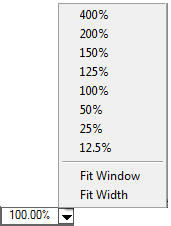
The first tool is the Zoom
Factor Combo Box which used to adjust image size. You can
type the desired percentage directly into the Combo
Box or select it from the Combo
List. You can also select to Fit
Width or Fit
Window.
The next tool is the View Page Horizontal Scroll Bar showing the current page number and the total number of pages of the image, with the options to view:
First page
Previous page
Next page
Last page of the current image
The last tool is the Change Image Horizontal Scroll Bar which displays the image description. If there is more than one image displayed in the Images Panel, then you can use the Change Image Horizontal Scroll Bar to move from one group of images to another without selecting them from the Images panel. The options available are:
Go to First Page-this goes to the first page of a single or multiple page Image Document File.
Go to Previous Page-this goes back one page of a multiple page Image Document File.
Next Page-this goes to the next page of a multiple page Image Document File.
Go to Last Page-this goes to the last page of a multiple page Image Document File.
Related Topics